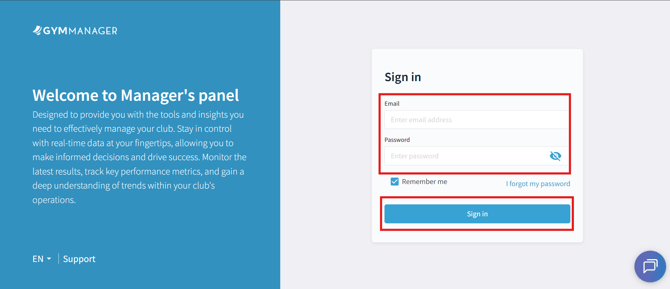
Step 1. Go to your Manager's Panel and sign in
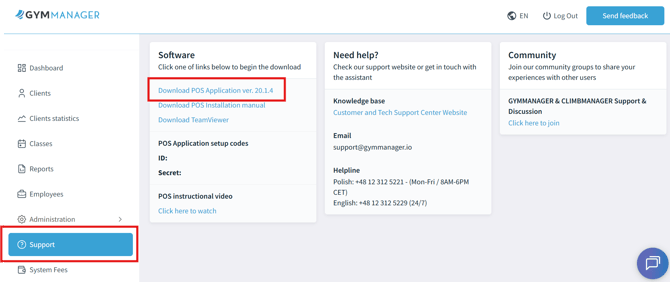
Step 2. After logging in, scroll down and open the "Support" section. On the right side, in the "Software" tile, click "Download POS application…"
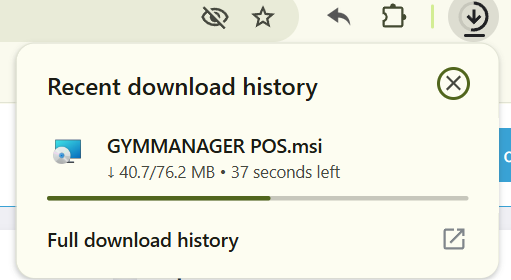
Step 3. The installation package will start downloading to your computer
Step 4. Once the download is complete, click the installation file and go through each installation step. Depending on your operating system, you may see a security warning.
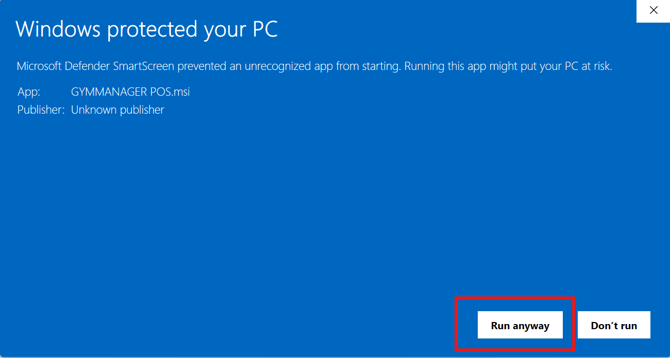
If it appears, click "More info" and then "Run anyway"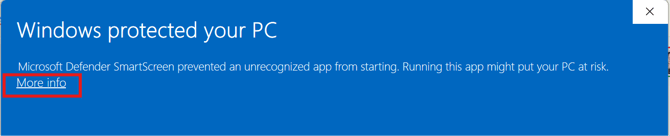
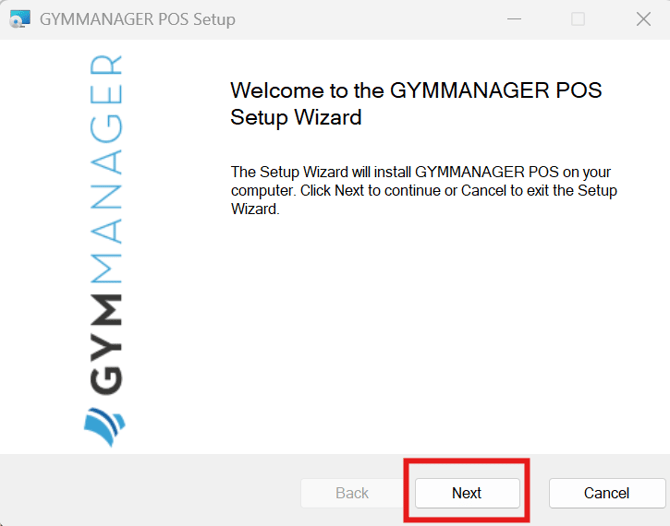
Step 5. In the "Welcome to the GYMMANAGER POS Setup Wizard" window, click "Next"
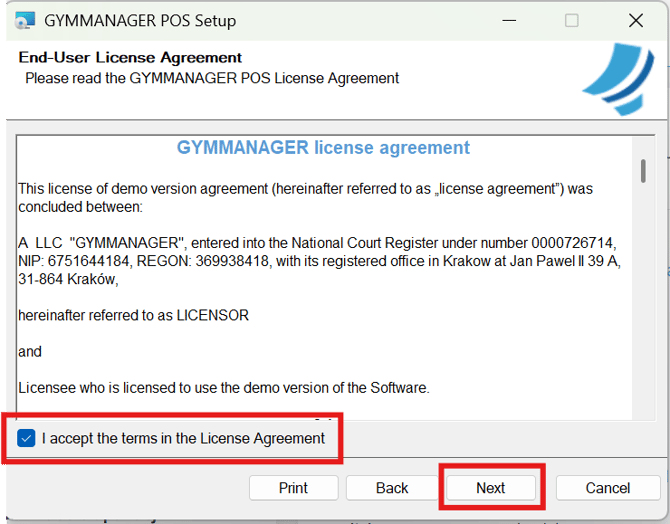
Step 6. Read the license agreement, check the box to accept it, and click "Next"
Step 7. During the installation process, you will be asked to enter your API ID and API Secret.
Both values are available in your Manager Panel under "Support" then "Software" (the same place where you downloaded the installation file)
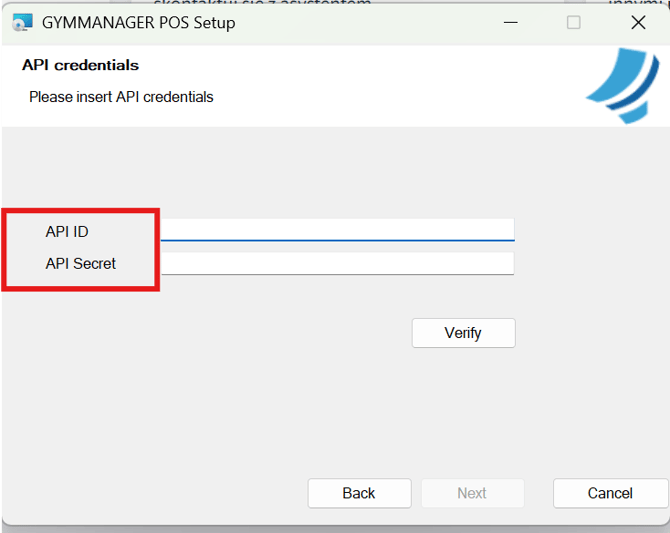
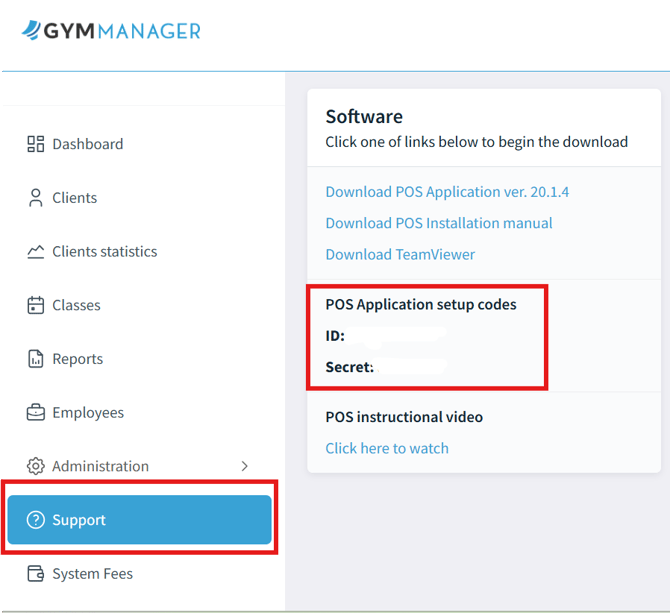
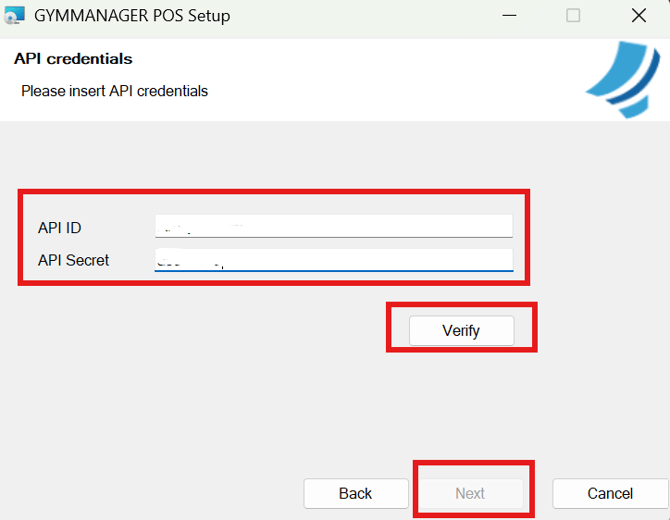
Step 8. Enter the API details and click "Verify".Once the "Next" button becomes active, click it
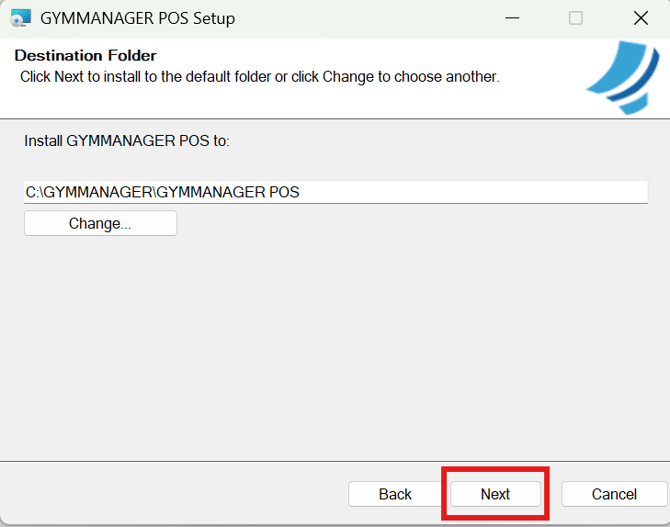
Step 9. In this step, you can change the installation folder or keep the default path. Then click "Next"
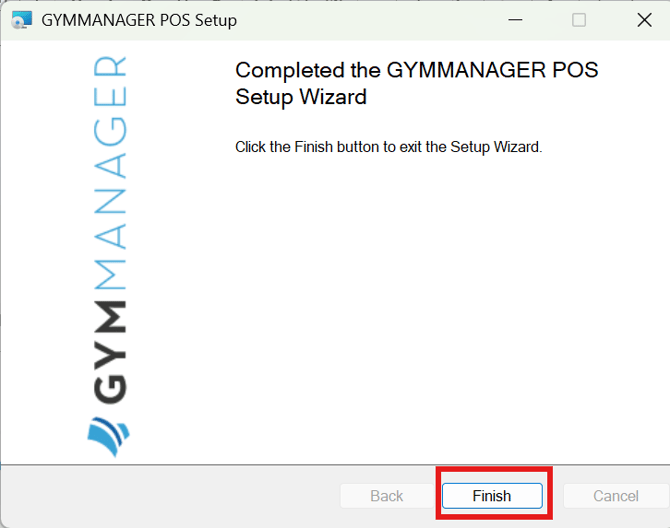
Step 10. Wait for all required files to install, then click "Finish". A shortcut to the POS application will be automatically created on your desktop
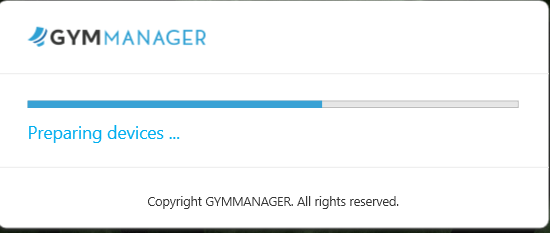
Step 11. Click the desktop shortcut to launch the application.
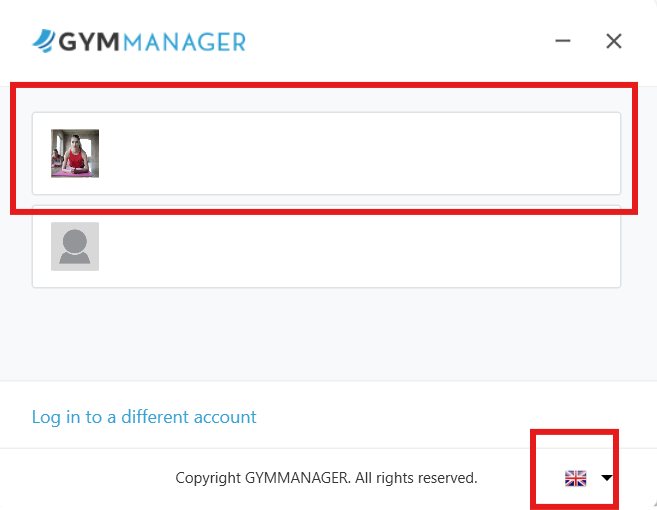
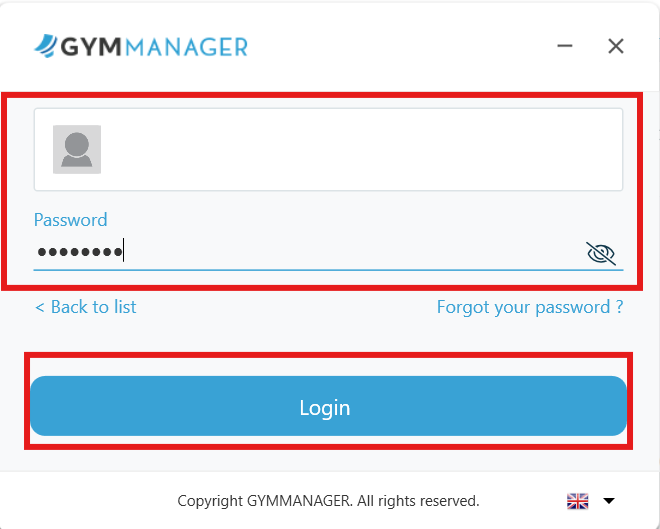
Step 12. In the login window, select the account you want to use, then enter your system password. Here you can also change the application language. After filling in the details, click “Login"
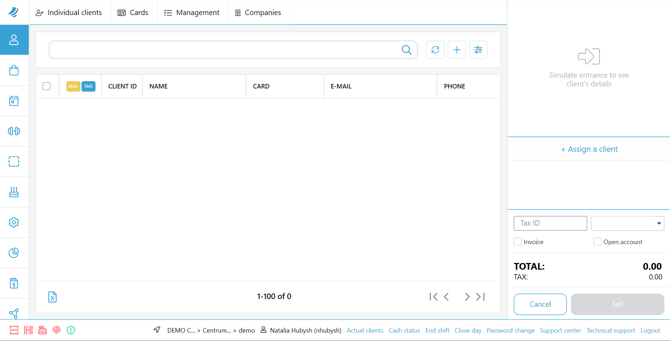
 Step 13. Done! This is the home screen of the POS reception application.
Installation is complete and the app is ready to use.