
To use QR code functionality, your club needs hardware that works with the system and can scan QR codes. You can use a standard scanner at the reception desk. You can install QR code readers at entrances, such as doors, gates, or turnstiles.
1) How to enable/disable QR code access from the Manager’s Panel
In the Manager’s Panel, go to: "Administration"- "Settings" - "System" and in the "General" section, scroll down to find the section related to QR code configuration.
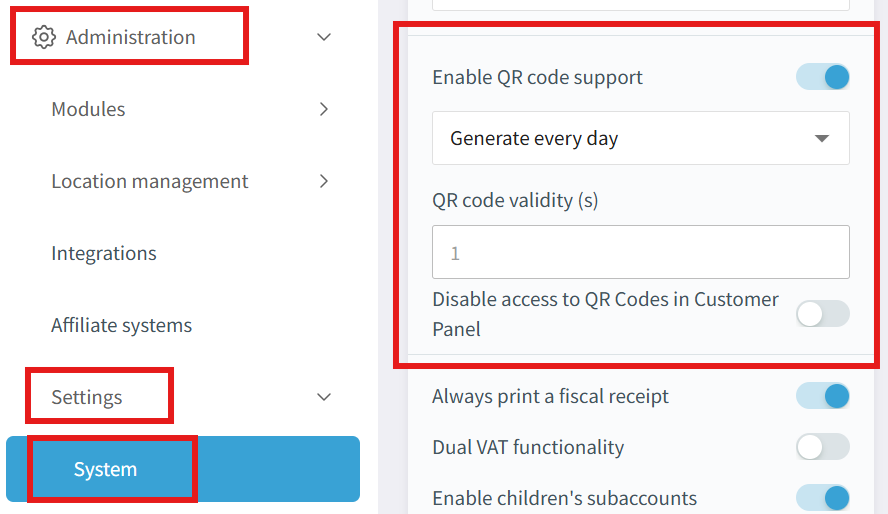
If you enable "Enable QR code support", you can generate QR codes in the Customer Panel and the mobile app.
If the club wants to block QR code generation in the Customer Panel and allow it only in the mobile app, enable the option "Disable access to QR codes in Customer Panel".
2) How to enable/disable QR code access from the POS application
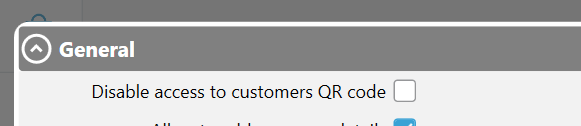
In the POS application, go to "Administration" - "Modules" - "Reservations online". Use the option "Disable access to customers QR code".
If this setting is enabled, clients will not be able to generate a QR code.
3) How does a client use the QR code to enter the club?
Once configured correctly, the QR code is available to every client:
- in the Customer Panel under the "Your QR Code" tab
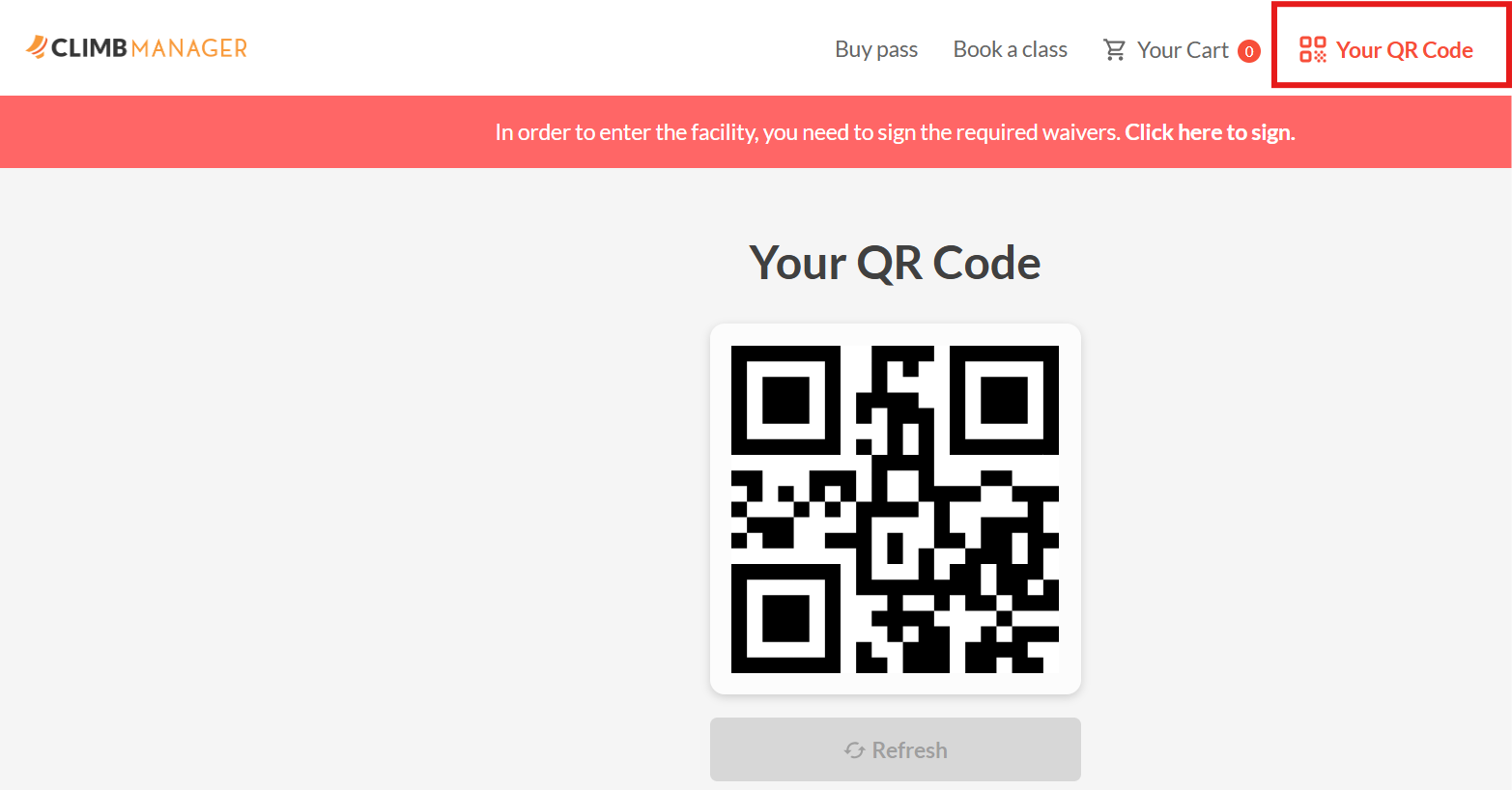
- in the club’s mobile app.
Step 1. A client logs in to the Customer Panel or the mobile app and opens the "Your QR Code" tab.
Step 2. The client holds their phone or tablet with the displayed QR code close to the reader/scanner. After the QR code is scanned successfully, the client is automatically granted access to the club.